Once multi-currency is enabled in your org, you need to configure Revenue Cloud to ensure correct pricing on quotes and product additions. Follow these steps:
1. Open the Lookup Table
From the App Launcher, search and open “Lookup Tables”
Find and open the “Price Book Entries V2” record
2. Deactivate the Lookup Table
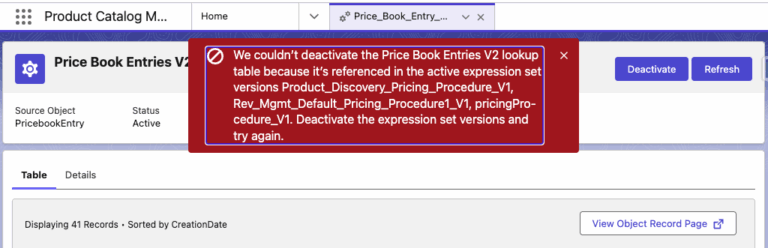
Click the Deactivate button at the top-right
If you see an error mentioning expression set versions, follow these steps:
2.1 – From App Launcher, search and open “Pricing Procedures” 2.2 – Open each record listed in the error matching the API name. 2.3 – Scroll to “Pricing Procedure Versions” 2.4 – Open the active version and click Deactivate 2.5 – Repeat for all versions referenced in the error
3. Edit the Lookup Table
Go back to “Price Book Entries V2”
Open the Details tab
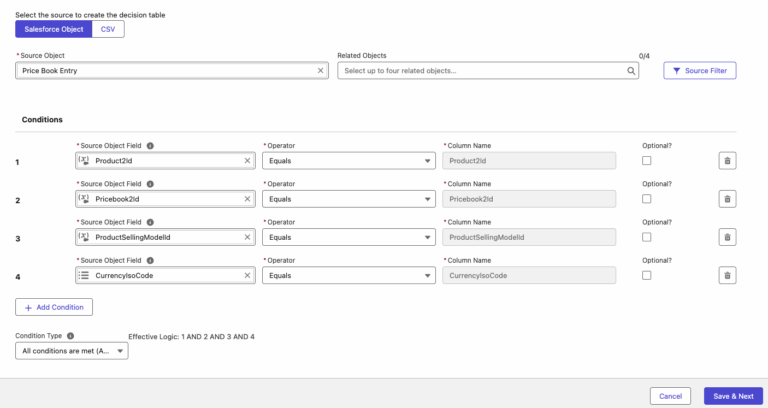
Click Edit to launch the Decision Table Wizard
4. Add Currency Condition
Click Save & Next until you reach Step 2 of 4
Click Add Condition
Add CurrencyISOCode
Click Save & Next and then Finish
5. Reactivate the Lookup Table
Click Activate on Price Book Entries V2
6. Update Pricing Procedures Input Variable
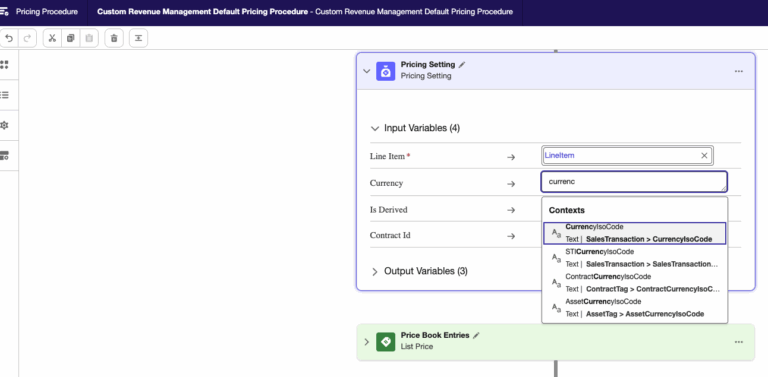
Open your default Pricing Procedure and make the below changes
In the first Pricing Settings node, go to Input Variables
Set the Currency value to SalesTransaction > CurrencyISOCode
Make the same changes to the Product Discovery Pricing Procedure as well.
In the first Pricing Settings node, go to Input Variables
Set the Currency value to PricingCurrencyCode
7. Currency Mapping in SalesTransaction Context Definition
Make sure the Currency Mapping is correct within the active SalesTransaction Context Definition>> QuoteEntitiesMapping
8. Reactivate Deactivated Pricing Procedures
Go back to each deactivated version and click Activate
9. Refresh the Decision Table
Refresh the “Price Book Entries V2” decision table